
With the addition of the new multi-column feature, it is now possible to organize content into columns. This new feature gives authors more ways to effectively organize content in their articles.
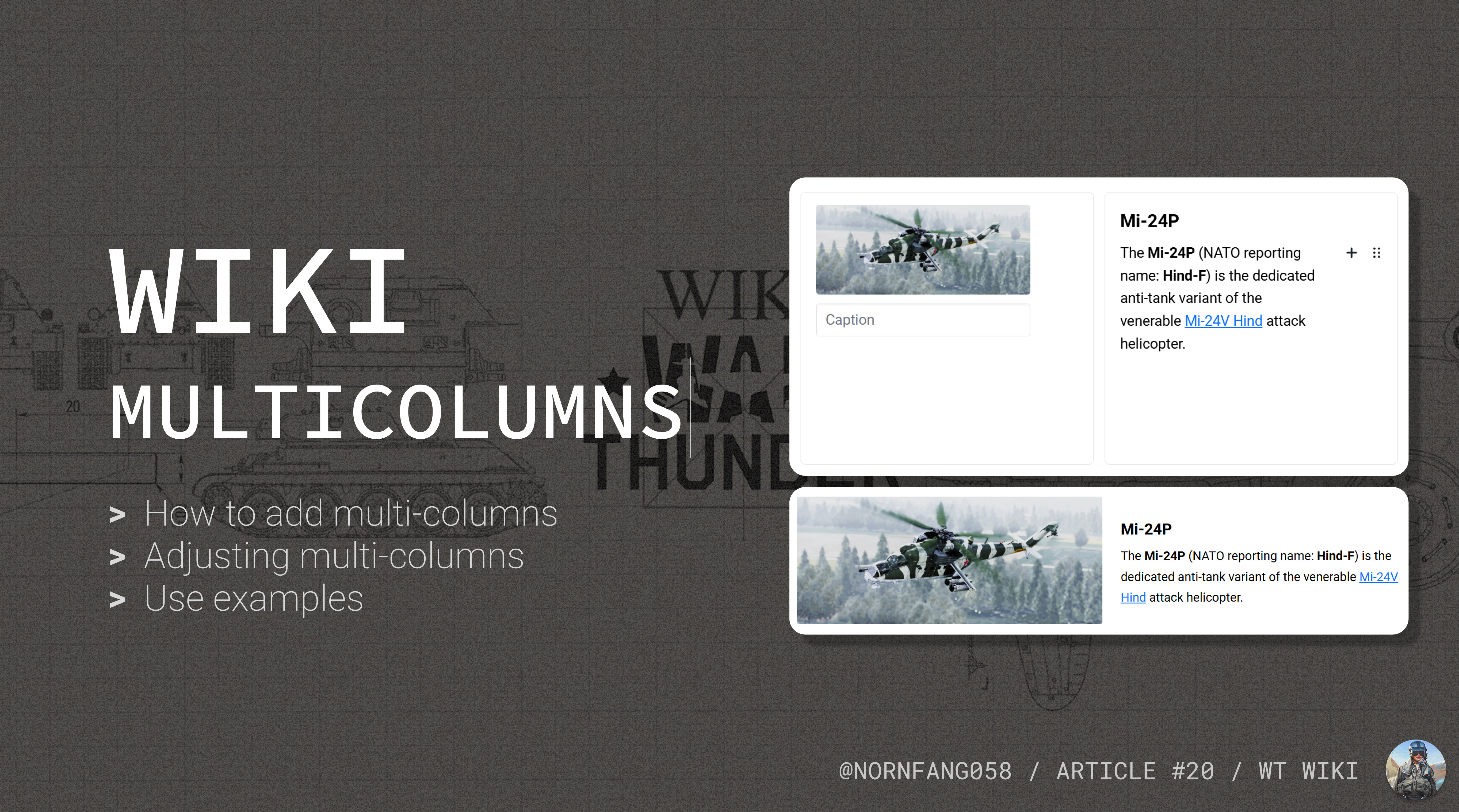
How to add a multi-column element
You can easily add a multi-column element to any point in your article by following the steps below.
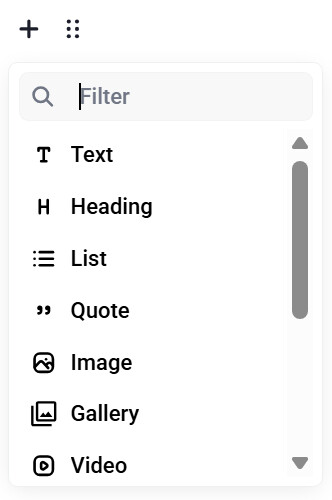
Step 1
Press the + symbol or type a / at the beginning of a new line to bring up the element menu.
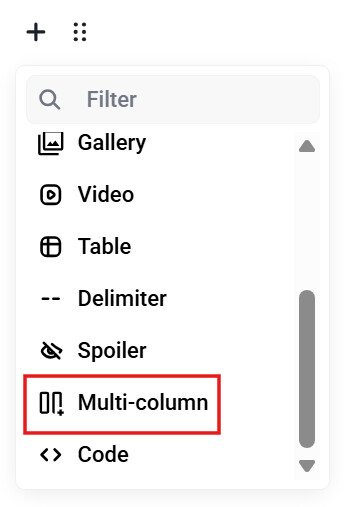
Step 2
Scroll down until you see Multi-column. Click on it to add a multi-column to your article.
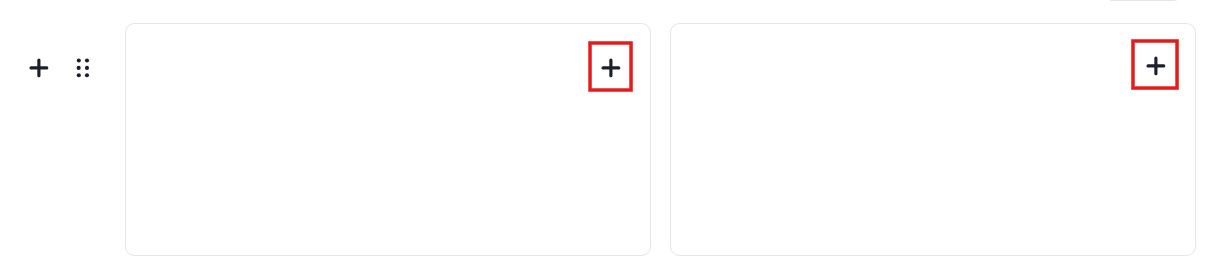
After creating a multi-column, you can add elements to each column and edit them. However, not all Wiki elements are supported inside multi-columns. Below is a list of unsupported elements.
- Quote
- Gallery
- Video
- Spoiler
- Multi-column (Cannot add a multi-column inside of a multi-column)
Note: When adding content to the inside of a multi-column, make sure to click the + symbols that are inside the columns and not outside. Clicking the + symbol outside the columns will instead add the element underneath the multi-column, rather than inside it.
Adjusting the number of columns
By default, multi-columns will have two columns when added. Multi-columns can be modified to have 3 columns instead of 2 by opening the tuning menu.
Step 1
Click the dotted icon on the left of the + button to open the tuning menu.
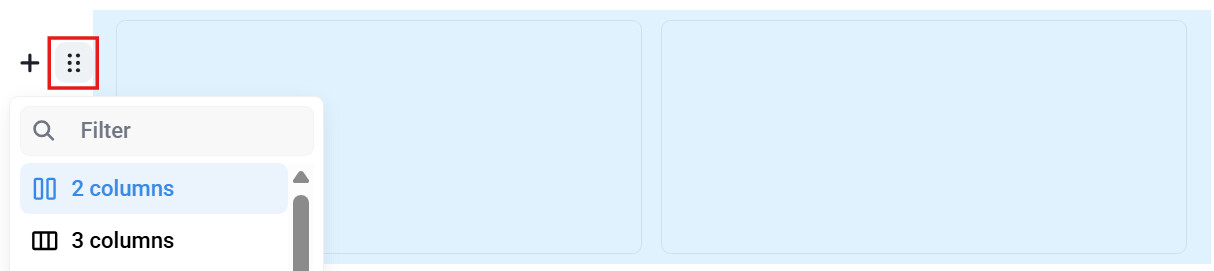
Step 2
Click on 2 columns or 3 columns, depending on how many columns you want to have in your multi-column element.
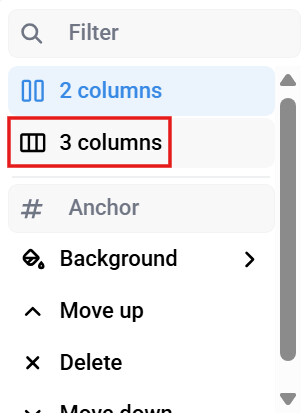
Please note that having more columns in a multi-column element will result in there being less space inside each column.
Use examples
Multicolumns can be used to display information in a linear or side-by-side format. This can be more useful when wanting to show a comparison (such as a list of pros and cons) or to display grouped images in a format other than a gallery.
Creating grid-like structures
You can create a grid of elements by stacking multi-column elements on top of each other. For example, a 2×2 grid of images was created below using this method.



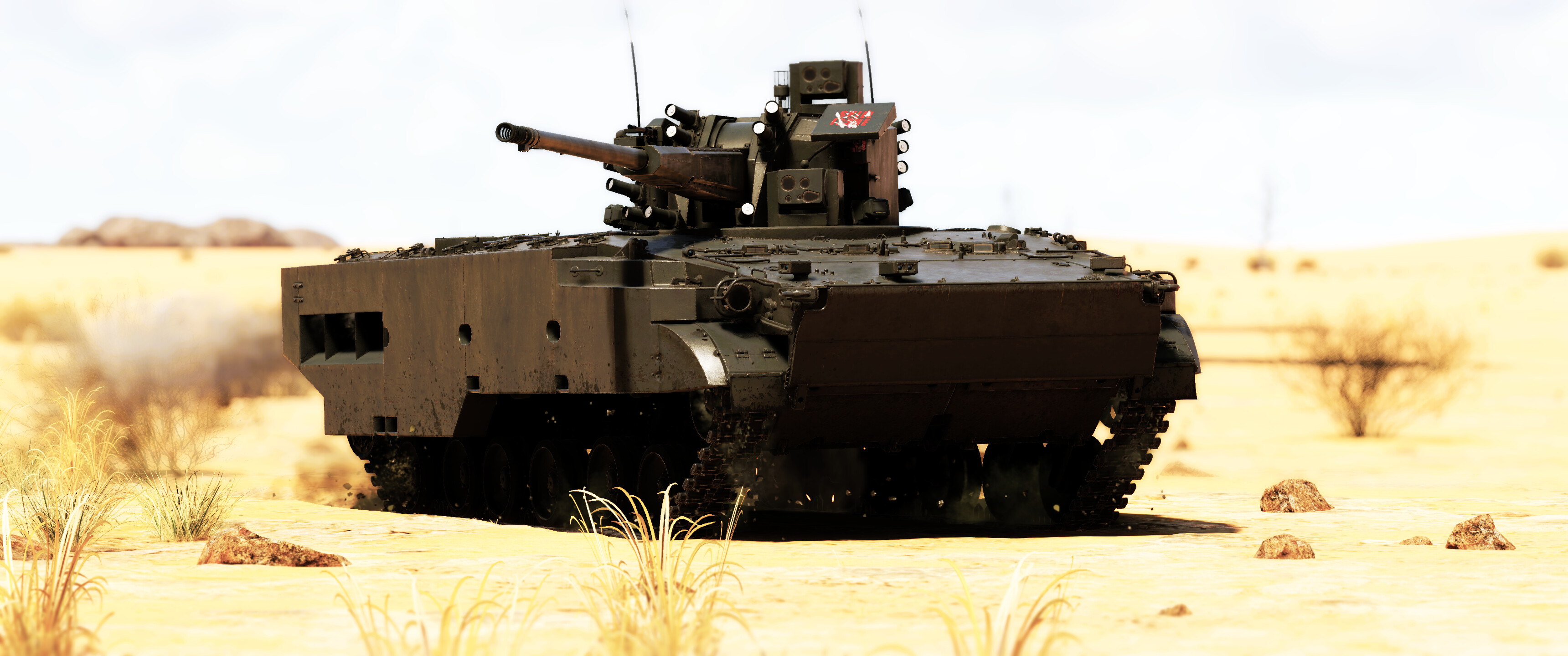
A grid can be adjusted further by modifying the number of columns (2 or 3) in each multi-column and by adding more multi-column elements on top of one another.
Displaying a paragraph of text next to an image
When adding extended descriptions for an image, the caption section may be too small or lacking in formatting options, or you may want to display the text in a different format.
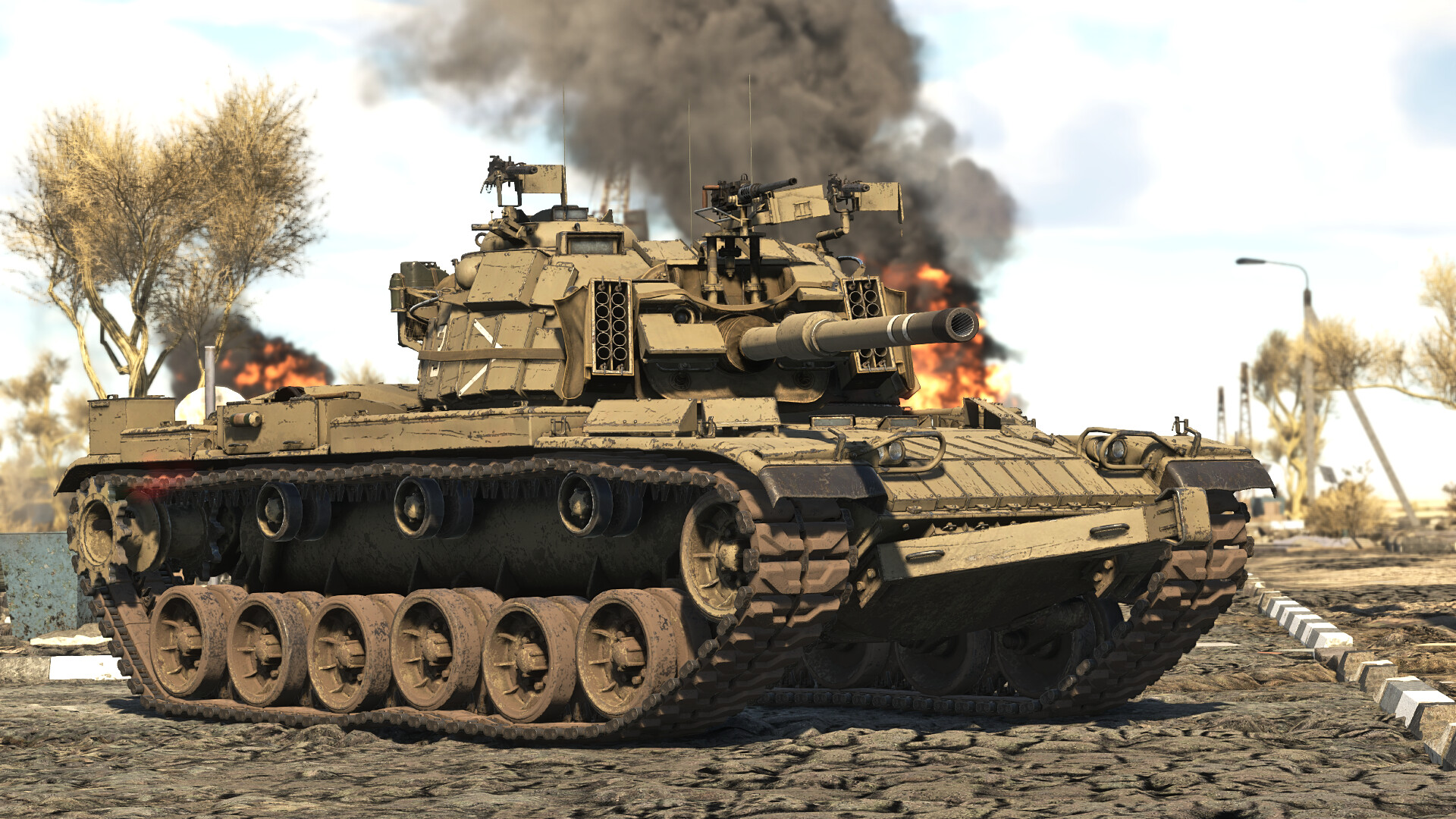
Magach 6R
The Magach 6R was a major upgrade over preceding Magach 6 variants. It features a new powerplant, which gives it more electrical power output. Extra smoke grenades are also mounted on the turret face.
Limitations
- Cannot add some types of elements inside multi-columns
- The maximum number of columns is limited to 3 columns
- Cannot adjust the margins of multi-column elements
- Formatting of multi-columns may not display as intended on smaller screens