
Vehicle presets are a feature that allows players to create and save multiple pre-configured vehicle presets (also known as “lineups”) that can be quickly selected based on player’s preferences and the game mode.

Preset creation

Access this feature by clicking the “Presets” button below the crew slot panel. The names of existing presets are labelled on the buttons next to it, allowing you to quickly switch between them. The example above has only one set.
Below is an example of how to fill out presets for playing Realistic Naval Battles with US vehicles. There are two ways to fill out each preset: using the crew slot panel, or the research tree.
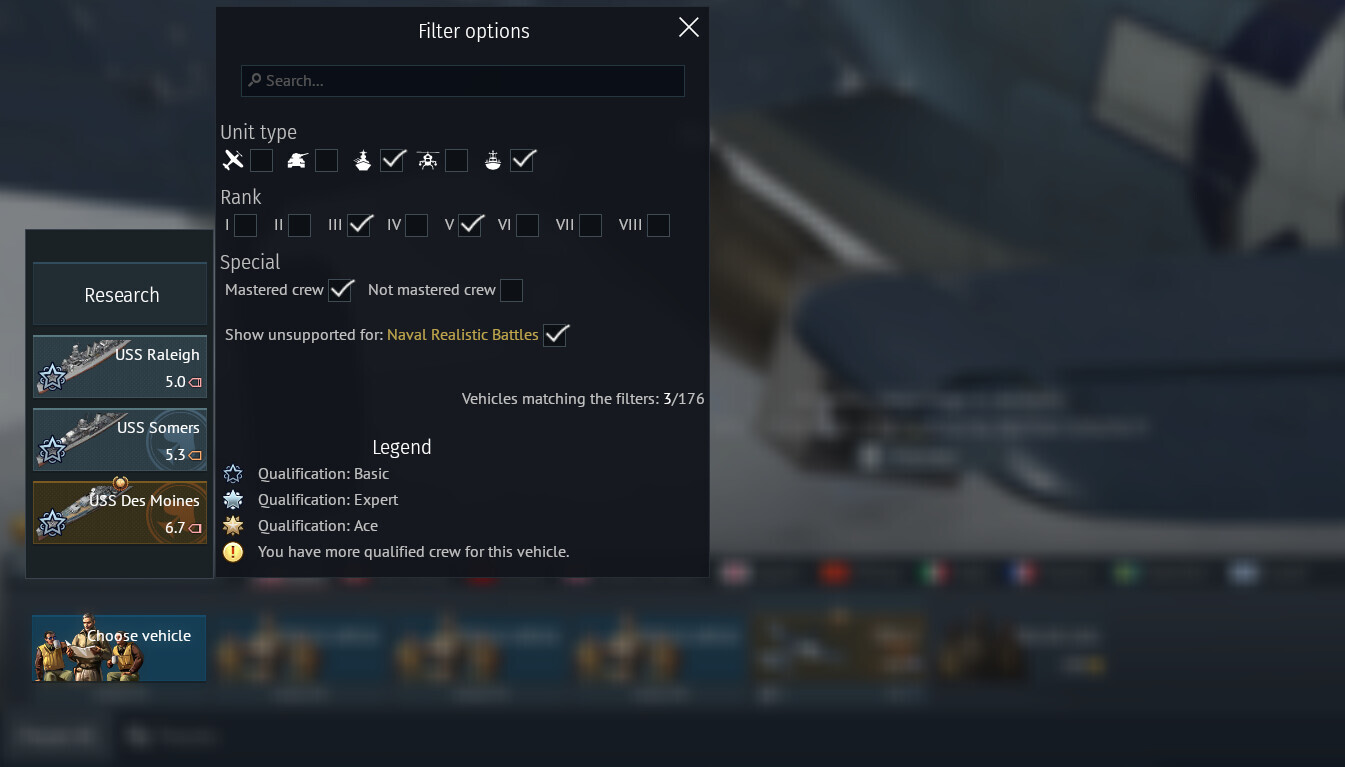
With the first method, click an empty crew slot and select a vehicle from the menu that appears.
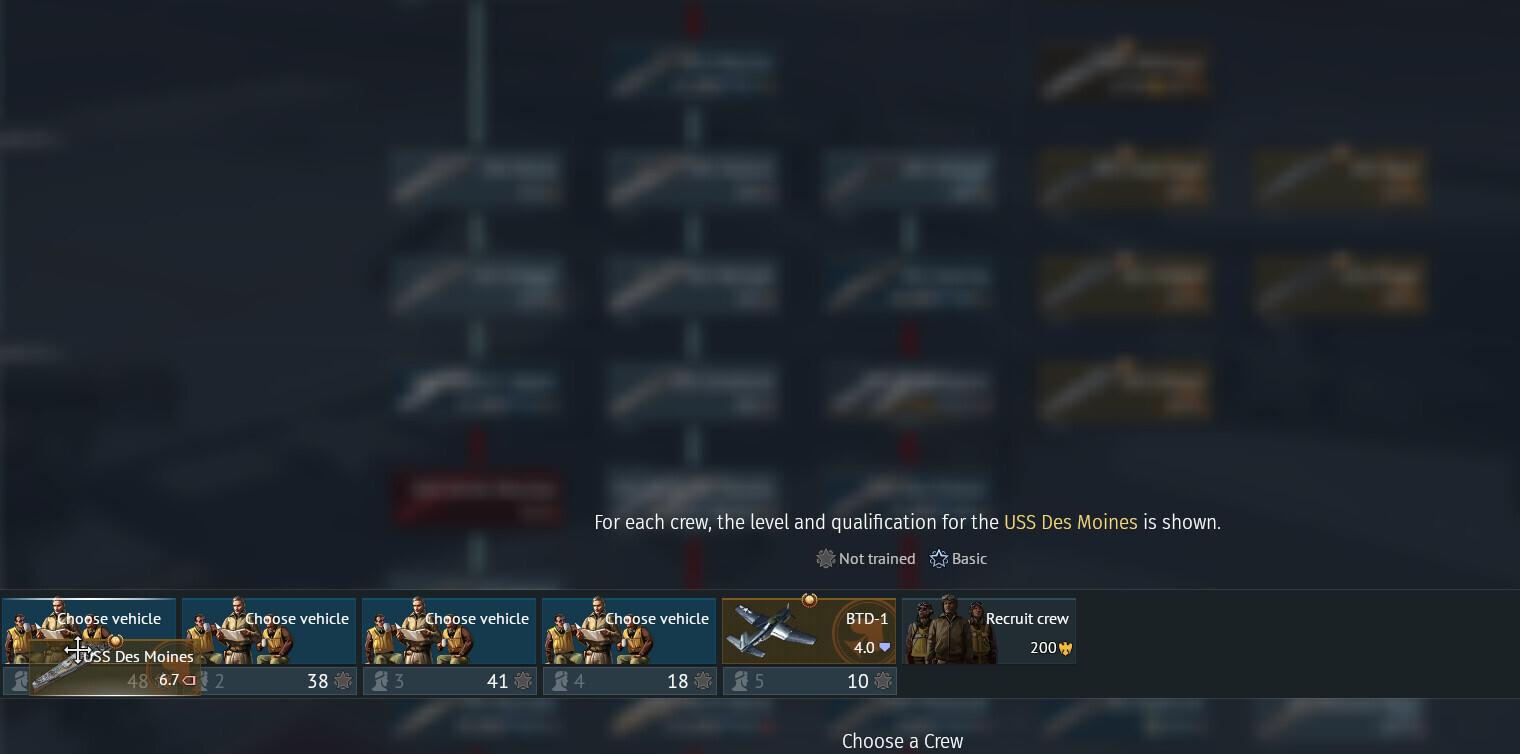
With the second method, go to the research tree, select the desired vehicle, click on it, and click the “Select Crew” button—or drag and drop the vehicle into the desired slot.
To delete a vehicle, simply drag it into the “Remove vehicle from preset” area or click “change vehicle” and press “Remove from preset” button.
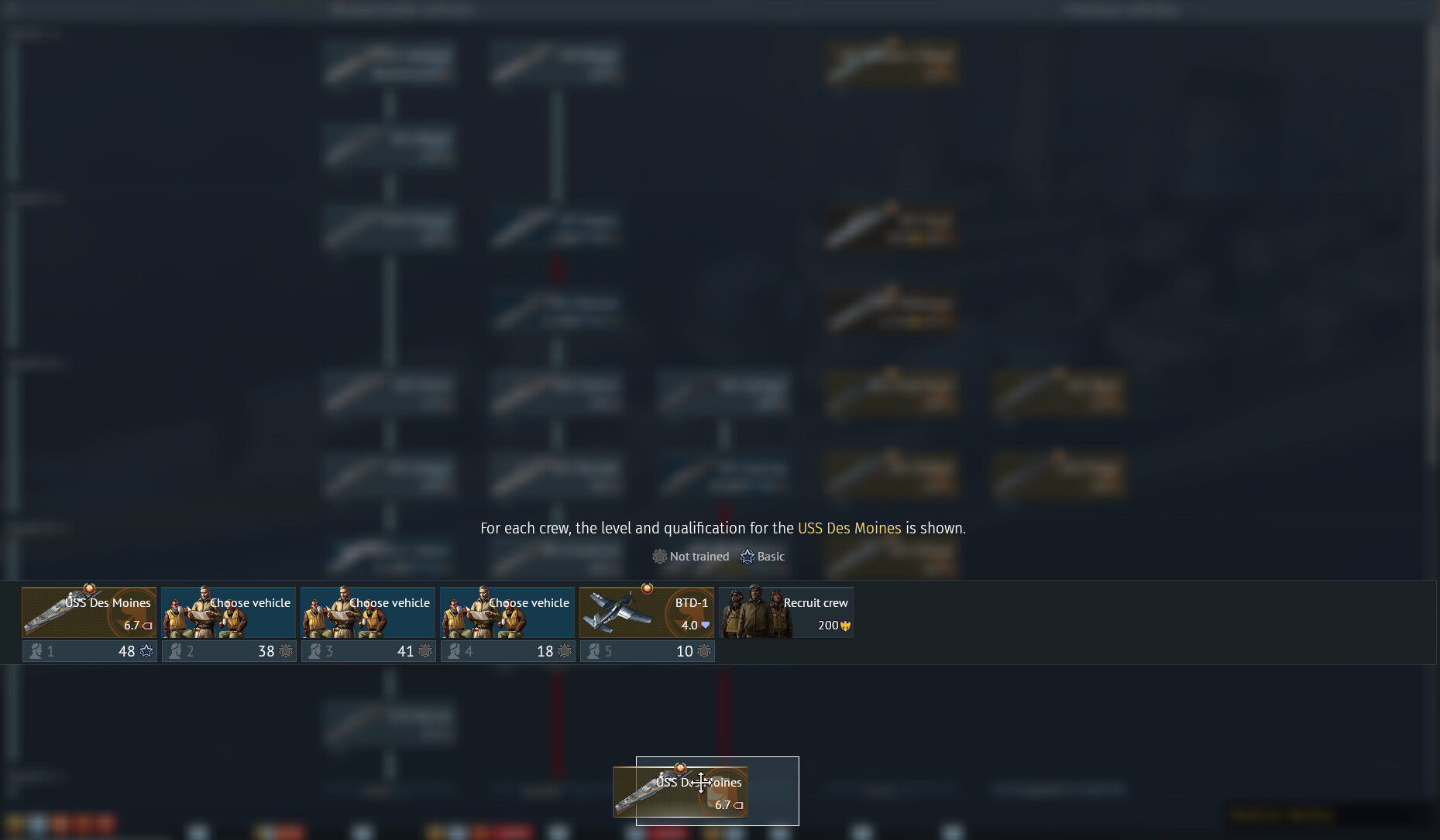
To make using different types of vehicles easier, you can conveniently arrange them in a preset. Simply drag the crew slot for the desired vehicle to a convenient location in the preset. Hold it by the bottom part where the slot number and crew level are indicated. This swaps the positions of the crew slots. No additional Silver Lions are charged for this, and you can move the slots as many times as you like. Note that the positions of the crew slots are unique to each set. Rearranging the crew slots within a single preset will not affect other presets.
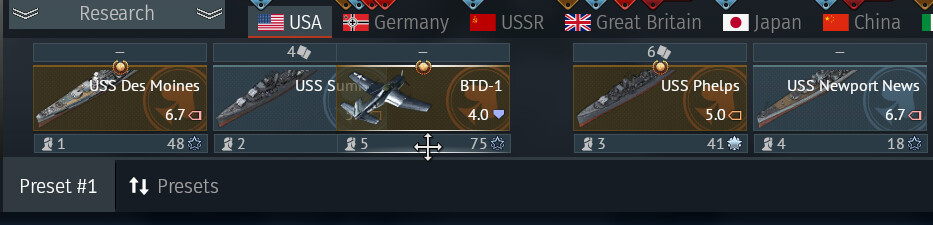
The hangar is now ready for mid-rank Naval battles. However, our goal is to be prepared for battles in other game modes and at other battle ratings, which means we need to prepare additional vehicle presets.
Click the “Presets” button to open the vehicle presets menu. The current preset, which is saved automatically, is displayed there.
Presets menu
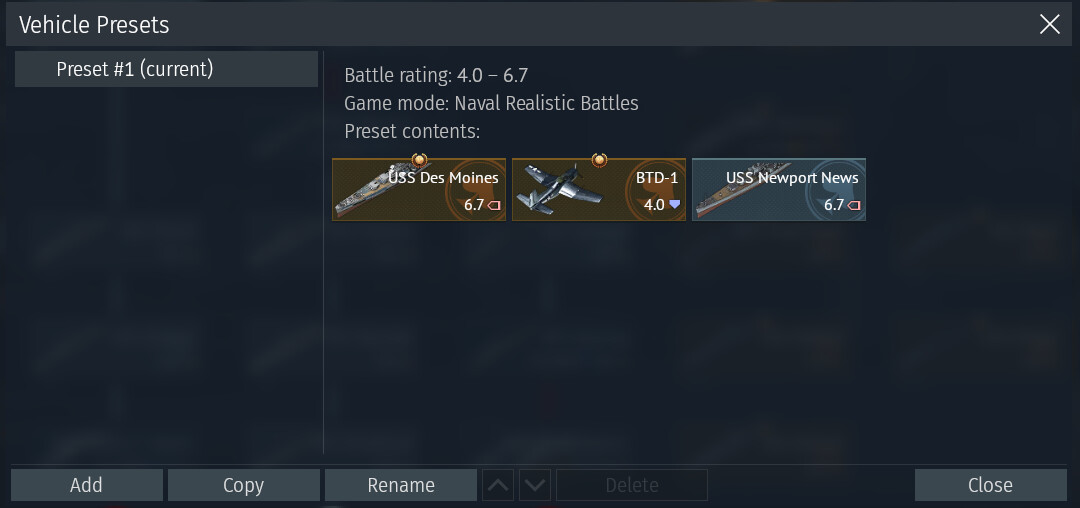
A list of available presets unique to each in-game nation is on the left side of the window. This list may contain up to fourteen configurations.
The right side of the window displays a list of vehicles saved in the selected preset.
The bottom row has the following buttons:
- Add — create a new preset.
- Copy — copies a preset without any changes to it.
- Rename — give a unique name to the preset for easier interaction.
- Two buttons with pointers allow to reorder the presets.
- Delete — Allows to delete a preset. Note that if you delete it, its not reversible. You cannot delete a preset when there is only one, or when it’s currently selected.
- Apply — changes vehicles to a selected preset. Note: if you clicked on a current preset, it will show “Close” instead.
In this case, the two presets will be called “Navy” and “Jets”.
Adding a new preset
To prepare a preset for Air Realistic battles, click “Add”. “Preset #2” will then appear in the list featuring a single vehicle with the maximum battle rating.
Click “Apply”, and you will switch to this preset.

Repeat the process of filling the slots with vehicles, but this time add the jets. Since there are now two presets, you can quickly switch between them using the buttons below the crew slot panel.
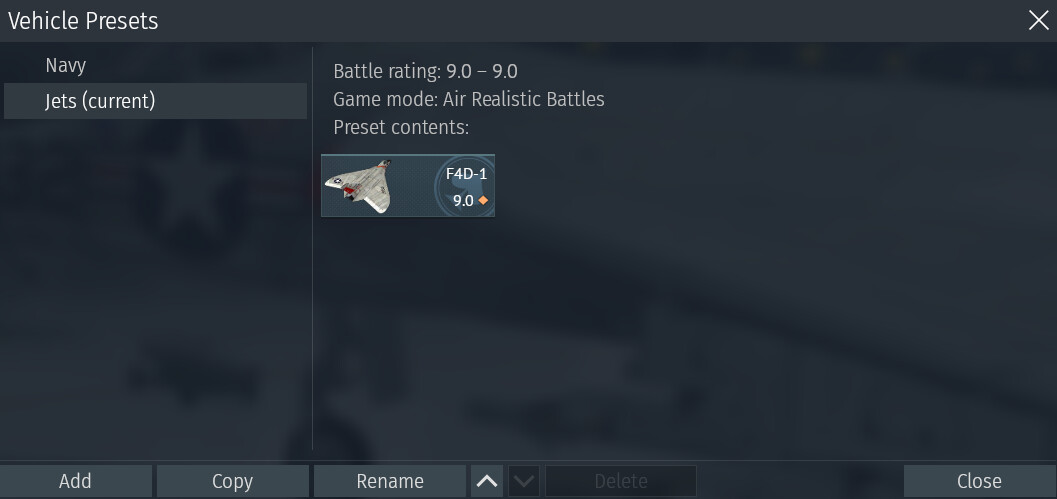
After filling the slots, reopen the Vehicle Presets menu to rename and rearrange the presets as you wish. As a result, you’ll have several preconfigured presets that you can quickly and easily switch between—meaning you’ll always be ready for battle!